Windows App
- 3.9
- Rating
- 10.00M
- Installs
- Free
- Price
 Analysis by App-foxy
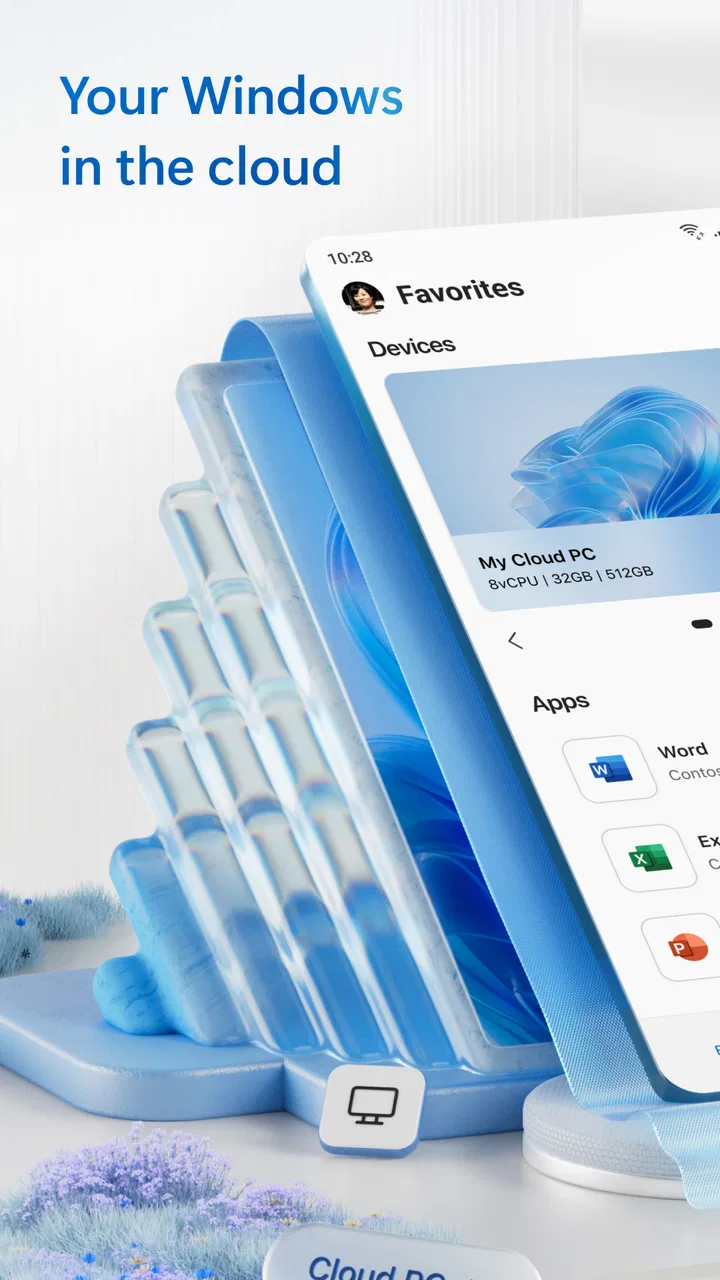
If you need to reach a work computer from an Android phone or tablet, Windows App is one of the more direct options I have tried. It is a business-focused app from Microsoft Corporation that connects you to remote PCs and virtual apps, with the familiar Windows environment appearing on your mobile screen. I found the idea useful for occasional access, but the experience depends heavily on the quality of the remote computer, the network, and how much work you expect to do on a small touchscreen.
The app is free and aimed at everyone from a content-rating perspective, although its practical audience is people who already have access to a suitable remote Windows environment. That distinction matters. Installing it is simple; having something meaningful to connect to is the part that requires preparation. If your goal is to open a document, check a business application, or handle a quick task while away from a desk, it can be very convenient. If you want a full desktop replacement for hours of detailed work, I would approach it more cautiously.
What Windows App feels like in everyday use
Windows App works as a doorway rather than a complete office suite. The work happens on the remote PC or through the virtual app, while your phone or tablet provides the screen, touch controls, and connection. That arrangement is helpful because you do not need to recreate every desktop program on your mobile device. You can reach the Windows tools you already use instead of searching for a mobile equivalent.
You May Also Like

 Blood Strike: 2.5 Anniversary
Blood Strike’s Loadouts Turn Every Drop Into a Tactical Gamble
A close look at Blood Strike’s custom loadouts: how fast access to signature weapons reshapes its battle royale rhythm, rewards preparation, and narrows the gap between fights.

 Pandora - Music & Podcasts
Pandora’s Music Is Easy to Start, but Harder to Recover
Pandora’s strength is its low-effort path from a seed to a station. Its weak spot is how much confidence it asks you to place in connection, setup, and quiet recovery.

 8 Ball Pool
 Is Built on Rivalries, Rematches, and Routine
A close look at the rivalries, rematches, shared routines, and unanswered safety questions that turn a quick pool match into a persistent mobile community.

 Samsung Music
’s Quiet Strength Is Playing What You Already Own
Its reach comes less from spectacle than from dependable access to a personal library. That simplicity is both the app’s strongest retention engine and its ceiling.

 AccuWeather: Weather Radar
AccuWeather Review: A Quick, Clear Forecast for Everyday Decisions
For everyday plans, the best forecast is the one you can understand quickly. AccuWeather makes rain timing, radar, and local conditions easy to act on, with a few trade-offs.

 Hill Climb Racing
Why Hill Climb Racing Still Turns Crashes Into One More Run
A tiny car, a bumpy hill and one more upgrade: Hill Climb Racing keeps resurfacing because its simple chaos makes every near-miss feel personal.
More From Our News Desk
View All News


In my experience, the strongest use case is a short, focused session. Imagine leaving the office and realizing that a file is saved on your work computer. Rather than asking someone else to find it, you can connect, open the relevant program, check the information, and finish the small task from your phone. The same approach can help when a business application is available remotely but has no practical mobile version.
The experience is less comfortable when the task depends on precise pointer movement, several windows, or long stretches of typing. Touch controls can make a desktop interface feel crowded, and the phone screen leaves less room for menus and dialog boxes. A tablet with a larger display is a better fit for regular use, while a phone is most useful for quick checks and emergency fixes.
The app has attracted an average rating of 4.0 from around 30 thousand ratings, and its reach is substantial, with over 5 million installs. Those figures suggest that it has become a familiar option for remote access, but they should not be read as a guarantee that every setup will feel smooth. Remote access is unusually dependent on circumstances outside the app itself.
What you need before opening it
The first question is not “How do I install it?” but “What am I connecting to?” Windows App is useful when you have a remote PC or virtual app already available through your work, school, or personal setup. If you install it without knowing the connection details or account requirements, you may reach the first screen and have no clear next step.
I recommend gathering the name or address of the remote computer, the account you are expected to use, and any organization-specific instructions before beginning. In a business environment, the person who manages your systems may also need to enable remote access or provide a workspace. The app cannot replace that preparation.
This is an important difference from a normal productivity app. With a note-taking tool, installation usually takes you straight to a blank document. With Windows App, the meaningful starting point is an available remote destination. Once that is ready, the mobile setup becomes much easier to understand.
Installing and making the first connection
Windows App was released on March 18, 2020, and the current version is 11.0.0.78. It supports devices running Android 9 or later. I would check the operating system before troubleshooting anything else, especially if you are using an older phone or tablet. The app is free, so the main preparation is technical rather than financial.
After installation, open the app and look for the route that matches your situation: connecting to a remote PC or opening a virtual app. The wording may feel unfamiliar if you have never used remote access, but the basic principle is straightforward. You are identifying a destination, supplying the required sign-in details, and asking the app to display that remote session on your device.
Take your time when entering the computer name or other connection information. A single incorrect character can look like a network problem later. If your organization supplied exact instructions, follow those rather than guessing from the name of the computer. This is one of the first places where a few minutes of careful setup can save repeated failed attempts.
When the app asks for credentials, use the account associated with the remote environment rather than automatically assuming it is the same account used to unlock your phone. Keeping those roles separate makes the process easier to reason about. If a connection fails, you can then check the remote account and destination independently instead of changing several things at once.
Reaching a useful result on the first session
For a first test, choose a task with a clear finish line. Opening a document, checking a value in a business program, or confirming that a remote desktop is reachable is better than attempting a complicated project immediately. A small success tells you whether the connection, sign-in, display, and input controls are all working together.
Once the remote screen appears, resist the temptation to test every menu. Start by locating the one program or file you actually need. On a touchscreen, tapping small desktop controls can be less precise than using a mouse, so zooming or changing your hand position may help. If the app provides a way to switch between touch interaction and pointer-style control, try both and keep the one that feels more predictable for the current task.
Typing is another area where expectations matter. A phone keyboard is fine for a short search or a brief message, but it is not a comfortable substitute for a physical keyboard during a long report. If you expect to use the app regularly, a tablet paired with a keyboard can make the remote session much more practical. That setup does not change what the app connects to, but it changes how demanding the session feels.
My preferred first workflow is deliberately cautious: connect over a reliable network, open one familiar application, perform one low-risk action, and close the session properly. I would not make an important system change during the first test. Remote work introduces enough variables that it is better to learn the controls before handling something time-sensitive.
Why the network changes the experience so much
Remote access does not behave like downloading a file or opening a locally installed app. Your device continuously receives the visual result of activity on the remote computer and sends your taps or keyboard input back. A connection that is technically available can still feel delayed, especially when you are moving through menus or typing quickly.
If the screen seems slow to respond, first separate connection trouble from app trouble. Try a simpler action, wait briefly, and see whether the remote screen catches up. Repeated tapping can create unintended results if the first command is merely delayed. This is a small but valuable habit: when a remote session hesitates, pause before issuing the same command again.
For sensitive work, I would also avoid treating public or unstable networks as interchangeable with a trusted connection. The right choice depends on your organization’s rules and the account you are using. Windows App gives you access to the remote environment, but sensible security habits still belong to the person operating it.
Common confusion during setup and use
One frequent misunderstanding is expecting the app to show a personal computer automatically. It does not turn a random Windows device into a remote destination simply because the app is installed on your phone. The computer or virtual app must already be available and configured for the kind of access you are attempting.
Another point of confusion is the difference between a remote PC and a virtual app. A remote PC presents a broader desktop environment, while a virtual app is centered on a particular program or managed application. If your organization offers both, choose based on the task. A single business program may be quicker and less distracting than opening an entire desktop, while a full remote PC is more flexible when you need several tools or files.
Sign-in problems can also be misleading. A correct password does not help if the wrong remote destination is selected, and a correct destination does not help if your account has not been granted access. Change one variable at a time: verify the destination, then the account, then the network. That method is slower than random trial and error for the first minute, but much faster overall.
Touch interaction creates its own learning curve. A tap intended to select a window may instead activate a small button, and dragging a scroll bar can feel awkward on a phone. I found it easier to use broad gestures where possible and to avoid rushing through dense desktop screens. For repeated work, a larger device or external input is not a luxury; it can be the difference between a useful tool and a frustrating one.
There is also a practical distinction between viewing and editing. Checking information remotely is usually less demanding than editing a complex spreadsheet, arranging a presentation, or navigating a program with many panels. Before relying on the app away from your desk, test the exact workflow you expect to use. A connection that is perfectly adequate for reading may be tiring for detailed editing.
Useful habits for work and personal access
One non-obvious advantage is continuity. If a program or file is already arranged on the remote PC, you can return to that environment instead of rebuilding the context on mobile. This is especially useful for specialized business software that does not offer a comparable phone app. The trade-off is that you remain dependent on the remote machine being available and in the expected state.
A second useful habit is to prepare the remote desktop for mobile access before you leave your main computer. Close irrelevant windows, place the needed file somewhere easy to find, and leave the program in a sensible starting position. This reduces the amount of tiny navigation required on the phone. It also makes a short emergency session more predictable.
A third insight is to use the app as a bridge for decisions, not automatically as your main workstation. I would use it to verify a figure, retrieve a document, restart a process if authorized, or complete a small administrative action. For deep creative work or long data entry, I would choose a desktop or a dedicated mobile app instead. The best results come from matching the tool to the size of the task.
It can also help to establish a clear stopping point. Remote sessions are easy to leave open while switching to another task, but that can create confusion the next time you connect. Before ending, save the work in the remote application, close anything that should not remain open, and disconnect intentionally. This is particularly important when more than one person may use or manage the remote computer.
How it compares with ordinary alternatives
Compared with installing separate mobile versions of business programs, Windows App is more consistent when the desktop version contains the features you need. You do not have to learn a different interface for every mobile companion app. The downside is that you inherit the limitations of remote access: network dependence, smaller controls, and the possibility of session delay.
Compared with browser-based access, a remote PC can provide a more complete desktop environment, especially when the required software is not designed to run in a browser. Browser tools are often simpler to open and better suited to quick collaboration, so I would prefer them when the task is already well supported online. Windows App becomes more compelling when the exact Windows program matters.
Compared with a traditional remote-control tool aimed at personal computers, this app makes more sense when your destination is part of a Windows or business workflow involving remote PCs and virtual apps. A simpler remote-support tool may be better if your only goal is helping a family member with their screen. Windows App is better judged as an access point to managed work environments, not as a universal answer to every remote-control situation.
The choice also depends on how often you connect. Occasional users may appreciate the free entry point and the ability to reach an existing Windows setup without buying another mobile program. Frequent users should think about ergonomics, account management, and whether a tablet, keyboard, or full laptop would make more sense. Convenience is real, but it is not the same as comfort.
Who should use it, and who should skip it
I would recommend Windows App to someone who already has a remote PC or virtual app and occasionally needs access while away from a desk. It is also a sensible option for people whose important business software exists on Windows but has no equally capable mobile version. The app is particularly useful when the task is specific, time-sensitive, and already familiar on the remote computer.
I would be more hesitant to recommend it to someone expecting a self-contained Windows experience immediately after installation. It is not a replacement for owning or arranging access to a computer, and it cannot remove the awkwardness of using a full desktop interface on a phone. People who mainly need email, documents, or calendars may find ordinary mobile apps quicker and more comfortable.
It may also be the wrong choice for anyone who needs dependable offline access. The value of the session comes from reaching the remote environment, so connectivity and availability remain central. If your work must continue in places with unreliable service, local mobile tools are usually the safer primary option.
My practical verdict after testing the workflow
Windows App is a focused business app with a clear purpose: bringing remote PCs and virtual apps within reach of a mobile device. I like it most as an emergency-access and quick-completion tool. It can save a trip back to a desk, preserve access to familiar Windows software, and make a specialized work setup available from a smaller screen.
Its limitations are equally clear. The first connection requires information that the app itself cannot magically provide, touch controls are not ideal for every desktop task, and a weak connection can make even simple actions feel uncertain. Those are not reasons to dismiss it; they are reasons to test your real workflow before depending on it.
Microsoft Corporation has kept the entry barrier low: the app is free, supports Android 9 and later, and carries an Everyone age rating. I would install it when I already know the remote destination and need a practical way to reach it. My advice is to begin with one small, low-risk task and judge the app by that exact workflow, rather than assuming it will replace a laptop.
For the right user, that modest role is enough. If you need to check a work system, open a desktop-only program, or complete a short task from elsewhere, it can be genuinely useful. If you need hours of comfortable editing, offline reliability, or a setup that works without any remote infrastructure, a normal mobile app, browser service, or laptop will probably serve you better.
Overall, I see Windows App as a dependable bridge between mobile convenience and an existing Windows workspace. It is not exciting in the way a consumer app might be, but it solves a specific problem well when the destination is prepared and the task is kept realistic.
FAQs for Windows App
01What are the system requirements for the Windows App?
Before downloading the Windows App, ensure your device meets the minimum system requirements. The app typically requires Windows 10 or later, at least 4GB of RAM, and 500MB of free storage space. A stable internet connection is also recommended for optimal performance, especially during updates or online features.
02Is the Windows App free to use or does it require a subscription?
The Windows App offers both free and premium versions. While the free version includes basic features, a subscription unlocks advanced functionalities. Pricing varies depending on the plan (monthly or yearly). Be sure to check if there’s a free trial period to explore premium features before committing.
03How can I ensure my data is secure with the Windows App?
Data security is a priority for the Windows App. It implements encryption protocols to protect user information. Users are advised to regularly update the app to benefit from the latest security patches. Additionally, reviewing the app’s privacy policy will provide more insight into data handling practices.
04Can the Windows App be used offline?
The Windows App offers limited offline functionality. Users can access some features without an internet connection, but online services like cloud storage and live updates require connectivity. It’s advisable to check which features you’ll need offline and ensure they’re available in offline mode.
05What customer support options are available for the Windows App?
The Windows App provides several customer support options, including a detailed FAQ section, email support, and live chat. Premium users may have access to priority support. Additionally, the app's website often includes user forums and guides to help troubleshoot common issues.
Pros
- User-friendly interface enhances usability.
- Regular updates improve performance.
- Wide compatibility with various devices.
- Strong security features protect data.
- Customizable settings for personalization.
Cons
- Requires significant storage space.
- Some features locked behind paywalls.
- Occasional bugs disrupt user experience.
- Limited offline functionality.
- Resource intensive on older devices.

Windows App
Gallery